trendingearth

  • Gadgets
    • Apps
    • Guides
  • Education
    • Apps
    • Guides
  • Careers
    • Apps
    • Guides
  • Health
    • Apps
    • Guides
  • Sports
    • Apps
    • Guides
  • Sitemap

Pokemon Go Tips: Hatch Poke eggs without walking

Last Updated on: 23rd July, 2016

Pokemon-go Tips: You get PokeEggs as free items at PokeStops, if you swivel the DPs. Now, you can easily hatch pokemon eggs without walking/moving. If you are a couch potato or don’t want to move out to hatch PokeEggs using incubator. Pokemon Go is causing ripples with Pokeballs, PokeStops, Lure Modules, Incense, Poke Eggs etc., The game has released its japanese version recently, launching first time in Asian countries. Even though Indian and other countries’ version of the game is not out yet, the AR game has a huge fan base in India, China and other asian countries.
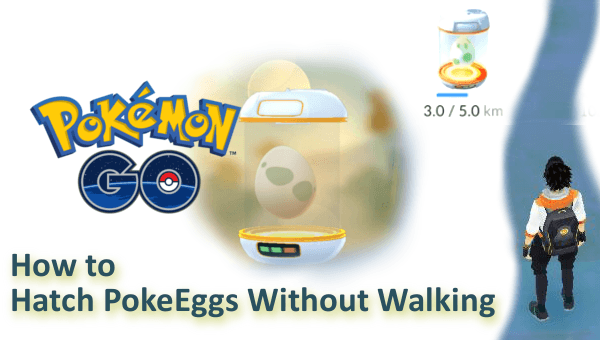
Hatch-Poke-Eggs-with-no-Moving

In this tutorial, I provide you with some tricks to hatch pokemon eggs faster with no walk. I recommend you to walk to incubate poke eggs as to get some physical exercise. A brisk walk for pocket monsters can help your fitness and improve your health. Some of these tips do work to play Pokemon GO without moving/walking.

How to Hatch Pokemon Eggs Without Walking

Trainers do know that they need an army of Pokemons like Mewtwo, Rattata, Ponyta etc., to win Gyms. So, the game players look for easy and quick ways to catch pokemons. Even Niantic and Nintendo knows this and so came up with PokeEggs with. Several other alternatives to catch pocket monsters easily like Lure Module, Incense etc., have been provided with. Desire has no extremes, so, some geeks have figured out quick methods and pokemon tricks to breed the rare pokemons like Jynx, Kabuto,  Dratini and others. I have listed out the best pokemon tips to hatch pokemon eggs faster without any walk or movement.

Before trying to use the below tips to quickly hatch eggs in incubator, ensure that you have a pokemon egg in incubator. PokeEggs are distance-specific like 2km, 5km and 10km. So, you need to walk minimum two kilometers to hatch egg from incubator. The more the distance, the rarer the pocket monster.

 Tip#1 : Get a Roomba/DJ disk player

To measure the distance for hatching eggs, the GO app uses the movement of your Android/iDevice. You can use rotating disks/devices/tools to decieve the game. You can look for a Roomba or any other means. A Roomba? what is it? A Roomba is nothing but a trademarked autonomous vacuum cleaner with sensors. Simply put, a miniature robot vacuum cleaner. We can use such devices to feed motion to the incubator and hatch eggs quickly.

Make sure your Pokemon GO is up and running with no login issues. Then place your smartphone on the rotating device like a disk player. Turn on the disk player/turntable and done. Your walked distance keeps on increasing and you can hatch pokemon eggs faster with this trick. Don’t let the device spin at higher speeds, This trick won’t work because of the game’s design for speed’s threshold.

Tip#2 : Use a Drone and Mirroring technique

The trick of using  a Roomba or turntable can work fine to hatch 2Km eggs. The rotation trick takes a lot of time to hatch 5 km or 10 Km PokeEggs. If you have some bucks and is a tech geek, then you can try Drone and Mirroring technique to play Pokemon GO without walking.

You need to attach your smartphone with Pokemon Go up and running to a drone. You can control the drone’s movement right from your home. You can view your device’s screen using screen-mirroring technique. You can choose mirroring applications like AirDroid.  Check out how to install and configure AirDroid to hatch eggs faster.

Tip#3: Let your Pet do Walking

Got a Labrador or German Shepherd? You can then tape your smartphone to your pet. Usually, pets roam around in the home and so your phone do. While you watch GoT Battle of Bastards on your iPad or Mac, your Pokemon eggs start incubating faster with no walking. But, make sure that your iPhone 6S plus don’t get damaged with this Pokemon trick.

Tip#4: Find a trust-worthy Jogger

If you have a trusted friend, who jogs everyday in morning, then you are lucky. You can ask your trust-worthy jogger to carry your Pokemon Go device with him/her. This is the best way to hatch your Pokemon eggs without moving an inch. This is also a legitimate method to get top rarest pokemons like Mewtwo, Snorlax, Magmar and Kabuto.

While you keep gaining fat under your belly, your friend get fit and healthy with your Fitness app.  Do throw a party for your friend who brought the Snorlax  to your home after jogging.

I hope the above pokemon GO tricks to hatch eggs faster gave you some crazy ideas to get the pocket monsters without walking 2km, 5km and 10 km. If you like the ideas, do share with your friends and fight your Gym battles. If you got any related tricks to breed PokeEggs faster, let our trendingearth team know through your comments.

Happy Hatching!

By johnmark Filed Under: Apps, Gadgets, Guides Tagged With: Hatch PokeEggs, Pokemon Go Tips

Pokemon Go Tips: How to hatch a pokemon egg in incubator

Last Updated on: 20th July, 2016

Pokemon-Go Tips: The game is a huge hit in Australia, US and going to release in Japan, India, probably. Got an egg at a Pokestore? And don’t know how to incubate an Poke egg in incubator to hatch a Meowth/Electabuzz? In this Pokemon-go guide, I make you incubate a poke egg in an incubator. Once, you place an egg in incubator, you need to walk 2/5/10 km to get it hatched. The distance is related with the type of egg you have got and the CP of to-be pokemon. Some pokemon-go trainers are searching for ways to hatch poke eggs without walking/moving. Though, some ways do exist from redditors to hatch eggs, you need to walk to feel the gist of the game.

Hatch Pokemon Eggs Walking

Are you facing the Pokemon Go authentication issue on logging in? Check out the ways to fix pokemon-go login or authentication issues and other problems

Follow the rest of the tutorial on how to hatch a pokemon egg in an incubator. Make use of the attached images to make the process easy. 

How to incubate a Pokemon Go egg

To incubate an egg, you need to get it first. You can get an egg at pokestore as free item. You need to hatch the eggs obtained in an incubator by walking or moving. With distance as a parameter, pokemons vary from Clefairy, Bulbasaur, Squirtle  to most-rare Meowth, Snorlax and Lapras. In the very beginning, Pokemon Go provides you with a single incubator to hatch unlimited eggs, one at a time. You can shop for more incubators to hatch pokemon eggs faster with walking or get more game XP on clearing levels. However, you can only incubate 3 eggs with such bought/XP based incubators. You need to walk to get  a pokemon from egg legitimately.

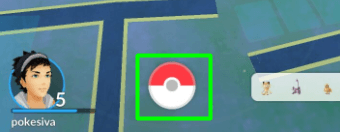
  • Tap on the big Pokeball on the game screen

Pokeball

  • Tap on the  Pokemon icon on bottom left of the screen

Pokemon-icon-Menu

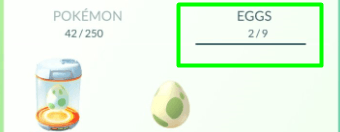
  • Switch over to Eggs  tab

Hatch-Pokemon-Eggs-walking

  • Press and hold any unincubated egg.
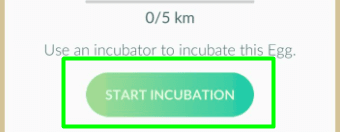
  • You will be prompted to start incubation

Start-incubation

  • All the available pokemon go incubators are shown on the screen.
  • Pick an incubator of your choice from the list and done

Pokemon-Go-Incubator

  • Now, You need to walk to hatch the poke egg.

Hatch-Poke-Eggs-Walking

Pokemons you get :

for 2 kilometer-walk :> Clefairy, Bulbasaur, Squirtle, Charmander, Jigglypuff, Pikachu, Geodude etc.,

for 5 kilometer-walk :> Kangaskhan, Tauros, Tangela, Porygon, Lickitung, Pnytha, Growlithe etc.,

for 10 kilometer-walk :> Snorlax, Lapras, Magmar, Aerodactyl, Pinsir, Electabuzz, Scyther etc.,

Pokemon Eggs – Tips :

  • Keep your pokemon GO app open while walking. Otherwise, the distance you cover to hatch eggs goes in vain.
  • The more you must walk for an egg, breeds the more rarer pokemon like Snorlax or Lapras
  • An incubator can hatch only one egg at a time with walking. To hatch eggs faster, you may buy incubators or clear more game levels to earn some.
  • Save battery power by enabling pokemon go battery saver or using battery saving tips.

Lazybones ask for ways to hatch eggs faster without walking. I plead you to walk as hard earned pokemons get you the real experience of playing the game. I hope that this pokemon guide helps you to hatch poke eggs in incubator by walking/moving.

By johnmark Filed Under: Apps, Gadgets, Guides Tagged With: Pokemon Go App, Pokemon Go for Android, Pokemon Go for iOS, Pokemon Go Tips

How to activate same Whatsapp account on multiple phones

Last Updated on: 31st December, 2017

Use same Whatsapp account on different devices: Millions of smartphone users connect with their buddies using Whatsapp messenger. It is the most used messaging platform followed by Snapchat. I use whatsapp on my android based Xiaomi RedMi Note 3. Recently, I read about how to use same whatsapp account on two or more phones without rooting or Whatsapp Web. Official site states that, you cannot activate/verify one whatsapp account to multiple phones, or with multiple phone numbers. It means that, if you have dual sim phone, you cannot use the same account with two sims. It also means that, you cannot use two whatsapp accounts on same android/iOS gadget, unless you use apps like Parallel Space multi-accounts app or root your device. Yet, we came across a work around to activate one whatsapp account on two Xiaomi  smartphones.

use-one-Whatsapp-Account-Multiple-devices

Methods to run one Whatsapp account on two or more phones

To use one whatsapp account on a different device, you have two alternatives. One is to use Whatsapp web version.The another method to use whatsapp Desktop app for Windows PC or Mac OS. Both methods will let you use your account on desktop/laptop/tablet running on Windows OS or Mac OS. Till now, there is no other way to use one account of whatsapp on different phones without activating the second account. If you try to switch your account frequently  to use one account on multiple devices simultaneously, Your account will be blocked. Henceforth, you cannot use your whatsapp account again. I will tell you some tricks to open the same whatsapp account  on different device without rooting. You can run different whatsapp accounts on same android  phone using Parallel Space apk. You can also now pin favorite whatsapp chat with update.

Download Whatsapp stories or status videos using story saver apk . You can also set long videos as status videos on whatsapp without rooting.

Now, you can unsend whatsapp messages easily with the latest whatsapp delete message in 7 minutes feature.

Method#1:  using Whatsapp Web version on Second android/iOS Smartphone

You need to have Google Chrome or Mozilla Firefox browser or any other browser that provides desktop environment on mobiles. This method don’t require rooting  your android phone or jailbreaking your iOS based iPhone/iPad/iPod Touch. You can run second instance of whatsapp on another device using web version.

  • Ensure that you have an active whatsapp account on Android/iOS gadget, say Device1.
  • On Device2, open Google Chrome or any other browser with in-built “Request Desktop version” feature. You can experience Vivaldi browser for your Desktop.
  • Visit https://web.whatsapp.com on Device2, on which you want to run second instance of whatsapp account
  • Sometimes, you are redirected to https://www.whatsapp.com. Don’t worry.
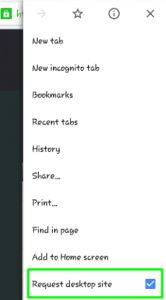
  • Enable the Request Desktop Site  feature to start using the same whatsapp account on different Android/iPhone.

Request Desktop Site Whatsapp

  • Then, your browser on Device2 will reload to direct you to https://web.whatsapp.com. You can able to see a QR Code on the page

Note: If you face 5xx Server error or other probem to access web whatsapp page, try to open the page in a different browser. If you can’t find QR code to scan on the webpage

  • On Device1, open your Whatsapp application. You need to verify  Device2 from Device1, to use the same whatsapp account on different device. You cannot proceed further without Whatsapp verification.
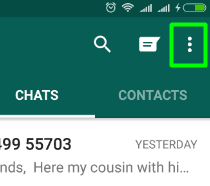
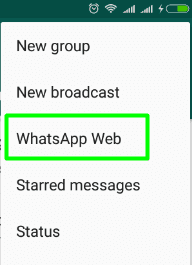
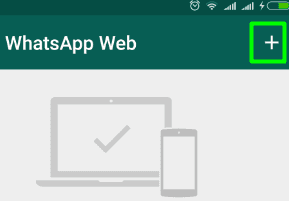
  • In your Whatsapp application on Device1,  Go to Chats Tab and tap on the three dots icon on top right hand side of the screen. Then select Whatsapp Web option. Later, tap on + icon to add new whatsapp web account.
Whatsapp three dots iconWhatsapp web version optionAdd-Whatsapp-Web-account
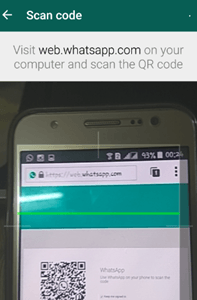
  • You can see a screen on Device1  to scan a QR code. Now, using Device1, scan the QR code of http://web.whatsapp.com page of Device2 browser.

Scan-QR-code-to-use-same-whatsapp-account

  • Tada! You can now access your same whatsapp account on different smartphone simultaneously. Check out how to Mirror Whatsapp account using Whatsapp Desktop app  on Windows 10/8.1/7 PC or Mac OS.
  • Make sure that your Device1 is always connected to internet to use the whatsapp web version of it on Device2. Otherwise, you cannot use the same whatsapp account on second device.

As an alternative technique, you can mirror android screen to your PC using Vysor chrome app and control your android phone from Windows 10/8.1/7 PC. Then, you can able to use whatsapp/snapchat/any other app  from your computer/tablet.

Method#2: Activate same Whatsapp account using MI Mover app

This Method  is exclusively  for Xiaomi smartphone users. You can use a single whatsapp account to work on two different smartphones simultaneously. This technique is tested on Xiaomi RedMi Note 3. We hope that, this whatsapp technique to verify the same account will work on Xiaomi RedMi series as well as Xiaomi Mi Series too. Once you activate the account, you can use the two accounts simultaneously without rooting your android device. Mi Mover comes as in-built app for Xiaomi Phones. Even though, Mi Mover can be downloaded from Google Playstore or iOS appstore, this trick to use same whatsapp account on different phone will not work.  Mi Mover is an integrated app of Xiaomi to move app data from one Xiaomi phone to other. This method don’t require rooting your phone. We need to test if it works with Snapchat too.

 Update: Xiaomi users who tried this technique on their Xiaomi Smartphones, says that,  they can only able to send messages from same whatsapp account on two Xiaomi devices. But, able to receive the whatsapp messages only on device, where the sim of original whatsapp account is present.

  • You need to have two Xiaomi based smartphones with Lollipop/marshmallow OS.
  • Let the Xiaomi with active whatsapp account be Xiaomi1 and the other, Xiaomi2. Follow the below steps to set up one whatsapp account on two different Xiaomi Smartphones.
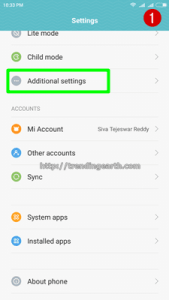
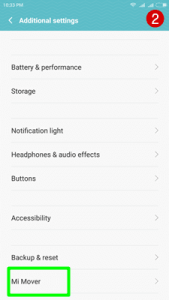
  • Go to System Settings :> Additional Settings :> MI Mover on Xiaomi1 as well as Xiaomi2
Whatsapp-Xiaomi-Additional-SettingsWhatsapp-Xiaomi-Mi-mover-setting
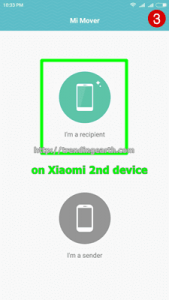
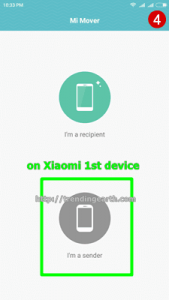
  • Choose the first Xiaomi as sender and Xiaomi2 as receiver
  • A QR code to activate the same whatsapp account of Xiaomi1 on Xiaomi2 is generated on Xiaomi2. This is a secure way to transfer any app and its data between two different xiaomi devices. Choose Xiaomi1 as sender and Xiaomi2 as receiver.
Whatsapp-account-on-Xiaomi-2Whatsapp-Account-on-Xiaomi-1
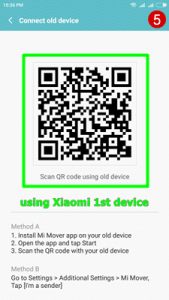
  • Using first Xiaomi, scan the QR code on second Xiaomi. Then both the android smartphones connect with each other using a common hot-spot.

QR-Code-for-same-whatsapp-account-on-two-devices

  • Now, you can select the whatsapp app and data to be sent to the second phone.
  • Done! Now you can see that the same whatsapp account is activated on different device without rooting android phone.
  • Mi Mover app can also be used to transfer any other android app between two devices.

This Mi Mover technique can be very dangerous, if your Xiaomi is in wrong hands. So. make sure that you use app locker like apps to protect your Whatsapp Privacy. This whatsapp trick can be used to install the same whatsapp account on different smartphone without android rooting. Very soon, they can release an update to check-mate this security issue of Xiaomi.

Method#3: Mac Spoofing Technique or Rooting trick (not recommended)

I strongly oppose this method to use one whatsapp account on different phones. Usually, Whatsapp uses mac address of the device to check for the authencity of the account. However, apps like Parallel Space Multi accounts app , Bluestacks or Youwave create virtual environments. This method involves manipulating your Android/iOS device MAC address using some apps like Mac Spoofer. You try to change the MAC address of second device to that of first device on which whatsapp is already activated. I don’t prefer this method to verify the same whatsapp account on multiple devices. This technique is for experts and may involve damage to your android/iPhone gadget.

You can check the above three methods to use same whatsapp account on two or more devices. I remind once again that there is no official way to use multiple whatsapp accounts on multiple gadgets. You can do free voice calling, messaging, file sharing using the present version of whatsapp. Video calling feature is expected to appear in the next version of whatsapp.

If you face any problems to activate same whatsapp account on multiple devices, share the problems with us. Our trendingearth experts solve your issues with the activation of whatsapp on many phones. Share this Whatsapp tutorial, if you find it useful.


By johnmark Filed Under: Gadgets, Guides Tagged With: Dual Whatsapp, Whatsapp, Whatsapp Tips

6 reasons to upgrade Android Kitkat to Lollipop

Last Updated on: 31st July, 2016

Upgrade Android Kitkat to Lollipop: Android N is not yet released, but you can upgrade from android kitkat 4.4.2 to Lollipop / marshmallow till then.Android N release date is not yet announced. Android updates say Android N name can be Android N 7.0 Nutella or Nougat like marshmallow. Google may take consensus to decide Android N name before Android N release date. Android Lollipop features lure Kitkat users to upgrade from android kitkat 4.4.2 to 5.0/5.1. Let’s check out the luring Lollipop features forcing us to upgrade from android kitkat to lollipop.

Read:

How to install parallel space app to use two clash of clans or whatsapp accounts on same phone

How to see your android phone screen on windows laptop easily using Vysor app.

Upgrade from android 4.4.2 to 5.0
Upgrade from kitkat to lollipop

6 reasons to upgrade Android Kitkat to Lollipop

Tap & Go Lollipop feature

On updating from Android Kitkat to lollipop, Tap & Go lollipop feature will be available. with this feature of lollipop, you can sync all your files from old kitkat phone to new lollipop phone. When you upgrade android version to lollipop, these lollipop features can be used by kitkat users. Some Nexus users are facing Tap & Go not working problem.Hope that it solves if you upgrade lollipop to marshmallow.

check how to solve Tap and Go not working nexus problem.

Powerful search Lollipop feature

With Android version upgrades, complexity of settings too rose. It’s a tedious task to look for specific Android setting. If you upgrade from android 4.4.2 to 5.0 Lollipop, powerful search lollipop feature comes into play. With this lollipop feature, any user can get any settings with a single tap. It’s like ‘Search settings engine’ for android lollipop. Even marshmallow is also expected to have same lollipop feature after marshmallow upgrade.

Lollipop Cast Screen Feature

After you upgrade android kitkat to lollipop, one can use Cast Screen Lollipop feature. With this feature, one can stream the web conent on your Android device running Android Lollipop/marshmallow/Android N  to TVs using adapters like Chromecast. So, you can use castscreen feature, if you upgrade from android kitkat 4.4.2 to lollipop.

How to use cast screen in android lollipop?

  • Swipe down on Lollipop screen to get notification menu, you can find cast screen icon
  • Tap on the cast screen icon, to get of nearby chromecast devices list
  • Choose your chromecast to mirror your android Lollipop screen to TV

This cast screen feature is exclusively upgrade from android kitkat to lollipop. This Lollipop feature will be available in Marshmallow/ Android L Nutella or Nougat.

Real-time Battery Indicator

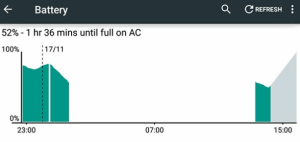
Android versions till kitkat 4.4.2 used to show battery life in percentage. After the upgrade of kitkat 4.4.2 to lollipop /marshamllow/ Android N, real-time battery indicator has its role. This lollipop feature also has battery saver option in its toolkit. If you compare Lollipop vs Kitkat battery life, I bet that Lollipop manages battery drain efficiently. Upgrade android version from kitkat to lollipop to get real-time battery indicator lollipop feature.

battery indicator lollipop feature

check out how to stop battery draining fast after lollipop/marshmallow update from kitkat.

In-built Flash Light App

Android Lollipop update brings with it, an in-built flash light app. Till now, Android kitkat are using third-party apps  on google play store. Best android kitkat flashlight apps include Flashlight by SimGears, Privacy Flashlight , Color Flashlight etc.,. Keeping this in view, Lollipop features in-built flash light app. So, quickly upgrade from android kitkat 4.4.2 to 5.0/5.1. Android Marshmallow/Android N shall also come with this feature. Let’s wait till the Android N name and release date is announced.

 Screen Pinning Feature

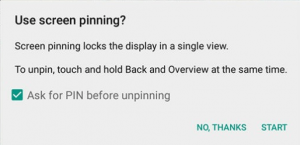
Android Lollipop Screen Pinning Feature

On upgrading android version to lollipop from kitkat, an useful screen pinning feature comes. This screen pinning feature will allows an android app to stay  on screen like “always on top feature in unix“. This lollipop feature is useful when your kid wants to play childish android apps on your Nexus 6P. Check out how to enable or disable screen pinning of an android app.

check out reasons to upgrade from lollipop to marshmallow  and Lollipop Vs marshmallow

Need to install second whatsapp account without sim on single android Lollipop/marshmallow phone? You can now install parallel space multi accounts app to run dual whatsapp/instagram accounts on same phone.

Above six android lollipop features lure us to upgrade from android 4.4.2 to 5.0. Wait for few more days to upgrade lollipop to Android N.Apart from them, trusted devices, App priorities add to lollipop features list. Quickly upgrade android kitkat to Lollipop / marshmallow.


By johnmark Filed Under: Gadgets, Guides Tagged With: Android

Download Hands Free :Google’s Android Pay Sibling

Last Updated on: 8th May, 2022

[Disclaimer: This Article is no longer applicable as the App has been removed from playstores]

Download Hands Free App for Android and iOS: Google revamped it’s mobile payment system Google Wallet with Android Pay. Now, Google launched Hands Free App available for download for Android and iOS platforms. Earlier, Google targeted Apple Pay with launching Android Pay fot its android users.What’s the difference between Android Pay, Apple Pay and Samsung Pay , with recent Hands Free app buzz? Who wins the clash between Android Pay or Hands Free vs Apple Pay and Samsung Pay? Let’s Check out.

Whatsapp Payment feature has been added. You can send money to your friends using WhatsApp Payment. All you need is a WhatsApp account and steps to activate WhatsApp Pay.

Download Hands Free App

Read: How to use 2 clash of clans(coc)/Snapchat/Whatsapp accounts on your android phone

Download Hands Free App :Google’s Android Pay Sibling

Google is boasting that on download of Hands Free App for Android/iOS, one can pay at stores without taking out your phone/wallet. This is the main difference between Android Pay/Apple Pay with Hands Free App. Hands Free Project of Google is still a pilot project, as per reports. However you can download Hands Free App and test it.

Get Hands Free for Android [[has been removed from App store]]

Get Hands Free App for iOS [has been removed from App store]

Read:

Vysor app lets you mirror android screen to your Windows PC or iPad/iPhone

reasons to upgrade from kitkat to lollipop to upgrade android kitkat 4.4.2 to 5.0.

What is Hands Free App?

Hands Free App is an mobile payment app that lets you pay using your plastic money in partnered outlets. Hands Free ties up a profile photo of you with the Hands Free account. It lets you add exter layer of security unlike android pay and apple pay. Similar approach was adopted by PayPal and Square, but failed to do so. Let’s wait if Hands free App could achieve that.

How Hands Free App let you pay money?

  • Download Hands Free App for your Android/iOS phone
  • Install Hands Free,the Google payment app
  • Associate credit card/ debit cards to account similar to Android Pay/ Apple Pay and a profile picture with the account.
  • Whenever you go to a partnered store for purchase, your smartphone will be recognized based on Location sensors, wifi etc.,
  • On Check out, you need to give your initials and your picture is crosschecked using in-store camera
  • Voila, it’s done.

Now, download the Hands Free app and test it out on your phone. Android pay too is similar to Apple pay in many features.

Know more about Android pay and how to use Android Pay

Check out differences between Android pay and Hands Free App.

By johnmark Filed Under: Apps, Gadgets Tagged With: Android, iOS

Featured posts

  • Pocket Monsters: Download Pokémon Go for Android/iPhonePocket Monsters: Download Pokémon Go for Android/iPhone
  • Dual Whatsapp : Install Parallel Space Multi Accounts AppDual Whatsapp : Install Parallel Space Multi Accounts App
  • 2 Easy Ways to avoid Sharing Whatsapp Data With Facebook2 Easy Ways to avoid Sharing Whatsapp Data With Facebook

Recent Posts

  • 5 Weight Loss Smoothie Recipes For Breakfast
  • Hair Loss: 5 Ways to stop baldness
  • 5 Mental Well-being Tips for Students
  • 9 Famous Foods to Lose Weight
  • 6 Foods to gain weight easily

Tags

Android Android Lollipop Android Marshmallow Android Nougat Android Oreo apowermirror DownAlbum Download Facebook Lifestage Download Whatsapp Status Videos Dual Whatsapp fan fantastic Fun Google Cardboard Camera Google Chrome Guopan App Hack Whatsapp Account iFunbox alternatives instagram Interview Tips iOS iPhone ipl ipl2016 Jaibreak iOS 9.3.3 Marshmallow Features Moviebox like apps PC Pin Whatsapp chat Pokemon GO Pokemon Go App Pokemon Go for Android Pokemon Go for iOS Pokemon Go Tips Pokevision alternatives Save Whatsapp Video status Snapchat tutu app two whatsapp in one phone Whatsapp Whatsapp Facebook Data Sharing Policy Whatsapp Tips Whatsapp Video Calling whatsapp watusi windows
DMCA.com Protection Status

Popular Posts

  • Download Chatous app [Android / iOS / PC] latest versionDownload Chatous app [Android / iOS / PC] latest version
  • Track WhatsApp Chats using Android Spy appTrack WhatsApp Chats using Android Spy app

Copyright © 2026 · Trending Earth · Sitemap

Follow us on: Facebook | Twitter</

  • About Us
  • Contact Us
  • Privacy Policy
  • Disclaimer